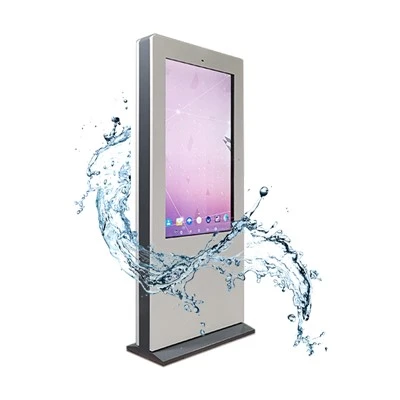


Hey there! As a supplier of Touchscreen Monitor Kiosks, I've seen firsthand how important it is to keep your kiosk software up - to - date. In this blog, I'm gonna walk you through the process of updating the software on a touchscreen monitor kiosk.
Why Update the Software?
First off, let's talk about why you even need to update the kiosk software. Software updates are like a little tune - up for your kiosk. They can fix bugs that might be causing glitches or slowdowns. For example, you might have noticed that your kiosk takes a long time to load a particular page or crashes randomly. A software update could very well solve these issues.
Updates also bring new features. Maybe your kiosk didn't have a way to integrate with social media before, but after an update, it can now post pictures and videos directly from the kiosk to platforms like Instagram or Facebook. This can enhance the user experience, making your kiosk more attractive and useful to visitors.
Another crucial reason is security. Hackers are always looking for vulnerabilities in software to gain unauthorized access. Software vendors are constantly working on patches to close these security loopholes. By updating your kiosk software, you're protecting your business and your customers' data from potential threats.
Pre - update Checklist
Before you start updating the software on your touchscreen monitor kiosk, there are a few things you need to do.


Backup Your Data
This is super important. You don't want to lose any important information during the update process. Back up all the data on your kiosk, including customer information, transaction records, and any custom content you've created for the kiosk. You can use an external hard drive or a cloud - based storage service to store your backup.
Check Compatibility
Make sure the new software version is compatible with your kiosk's hardware. Different kiosks have different specifications, and an incompatible software update could cause more problems than it solves. The kiosk manufacturer usually provides a list of compatible software versions. Visit their website or contact their support team if you're not sure.
Check Internet Connection
A stable internet connection is necessary for most software updates. Make sure your kiosk is connected to a reliable network. If possible, use a wired connection instead of Wi - Fi, as it tends to be more stable.
Updating the Software
Once you've completed the pre - update checklist, you're ready to start the update process.
Automatic Updates
Most modern touchscreen monitor kiosks support automatic updates. This is the easiest way to keep your software up - to - date. In the kiosk's settings, you can usually find an option to enable automatic updates. When an update becomes available, the kiosk will download and install it in the background, usually during off - peak hours.
However, there are some downsides to automatic updates. Sometimes, the update might cause problems with your kiosk's custom settings or third - party applications. That's why it's a good idea to test the update on a non - production kiosk first if possible.
Manual Updates
If you prefer to have more control over the update process, you can choose to do a manual update. Here's how:
- Check for Updates: Log in to the kiosk's administrative interface. Look for an option like "Software Update" or "System Update". Click on it to check if there are any available updates.
- Download the Update: If an update is available, click the download button. The download time will depend on the size of the update and the speed of your internet connection.
- Install the Update: Once the download is complete, follow the on - screen instructions to install the update. This might involve restarting the kiosk. During the installation process, don't turn off the kiosk or interrupt the process, as this could cause the update to fail.
Post - update Checks
After the update is installed, you need to check if everything is working properly.
Test Functionality
Go through all the main functions of your kiosk. Check if the touchscreen is responsive, if all the applications are working, and if any new features are functioning as expected. Try performing some common tasks, like searching for information, making a purchase, or submitting a form.
Check for Errors
Keep an eye out for any error messages or warning signs. If you see something that doesn't look right, check the kiosk's log files. These files can provide more information about what's going wrong. You can usually access the log files through the administrative interface.
Update Third - Party Applications
If your kiosk uses third - party applications, make sure they are also compatible with the new software version. Some applications might require their own updates to work properly with the updated kiosk software.
Our Kiosk Products
At our company, we offer a wide range of touchscreen monitor kiosks to meet different needs. Whether you need an All in One Touch Screen Kiosk for a retail store, a Wayfinding Touch Screen for a large building, an Interactive Wall Screen for an event, a Table Touch Screen Monitor for a restaurant, or a Digital Touch Screen Whiteboard for a classroom, we've got you covered.
Contact for Purchase
If you're interested in our touchscreen monitor kiosks or need more information about software updates, don't hesitate to reach out. We're here to help you make the most of your kiosk investment. Whether you're a small business owner or part of a large organization, we can provide the right solution for you.
References
- General knowledge about touchscreen monitor kiosk software updates from industry experience.
- Manufacturer's documentation for touchscreen monitor kiosks.