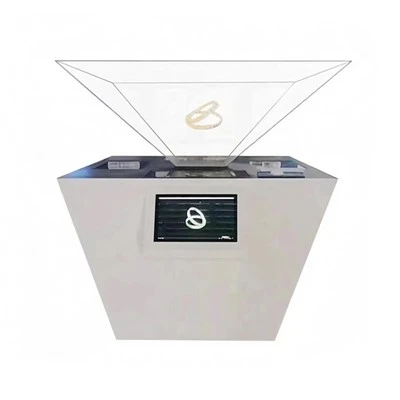



Hey there! As a supplier of All in One Touch Screen Kiosks, I've seen firsthand how these devices can become a real workhorse in various settings, from retail stores and museums to banks and airports. But like any piece of equipment, they need some love and care to keep them running smoothly and looking their best. Today, I'm going to share with you some tips on how to clean your All in One Touch Screen Kiosk effectively and safely.
Why Cleaning is Important
First off, you might be wondering why it's so crucial to clean your touch screen kiosk regularly. Well, there are a few good reasons. For starters, a dirty screen can make it difficult for users to interact with the kiosk. Fingerprints, smudges, and dust can reduce the visibility of the display, making it hard to read text and see images clearly. This can lead to a frustrating user experience and potentially drive customers away.
Secondly, dirt and grime can also damage the touch screen over time. The oils from our fingers and the particles in the air can scratch the surface of the screen, causing it to become less responsive and eventually malfunction. Regular cleaning can help prevent this by removing these contaminants before they have a chance to cause any harm.
Finally, a clean kiosk simply looks better. It gives your business a professional and polished appearance, which can make a positive impression on your customers. In a competitive market, every little detail counts, and a clean kiosk can help you stand out from the crowd.
What You'll Need
Before you start cleaning your All in One Touch Screen Kiosk, you'll need to gather a few supplies. Here's what I recommend:
- Microfiber cloth: This is the best type of cloth to use for cleaning touch screens because it's soft and lint-free. It won't scratch the surface of the screen and will effectively remove dirt and smudges.
- Distilled water: Tap water can contain minerals and other impurities that can leave streaks on the screen. Distilled water is pure and won't cause any damage.
- Mild cleaning solution: If the screen is particularly dirty, you may need to use a mild cleaning solution. Look for a solution that's specifically designed for cleaning touch screens and follow the instructions on the label.
- Compressed air: This can be used to blow dust and debris out of the crevices and ports of the kiosk. Make sure to hold the can upright and keep it at least 6 inches away from the surface of the screen.
Step-by-Step Cleaning Process
Now that you have all the necessary supplies, it's time to start cleaning your All in One Touch Screen Kiosk. Here's a step-by-step guide to help you through the process:
- Power off the kiosk: Before you start cleaning, make sure to turn off the kiosk and unplug it from the power source. This will prevent any electrical shock and ensure that the screen is safe to clean.
- Remove dust and debris: Use a can of compressed air to blow dust and debris out of the crevices and ports of the kiosk. Pay special attention to the corners and edges of the screen, as these areas tend to collect the most dirt.
- Dampen the microfiber cloth: Moisten the microfiber cloth with distilled water or a mild cleaning solution. Make sure the cloth is only slightly damp, as excessive moisture can damage the screen.
- Clean the screen: Gently wipe the screen in a circular motion, starting from the center and working your way out to the edges. Be careful not to apply too much pressure, as this can scratch the surface of the screen. If there are any stubborn smudges or fingerprints, you can use a bit more pressure or a small amount of cleaning solution.
- Dry the screen: Use a dry microfiber cloth to dry the screen thoroughly. Make sure there are no streaks or moisture left on the surface.
- Clean the rest of the kiosk: Once the screen is clean, you can use the same damp microfiber cloth to clean the rest of the kiosk, including the frame, buttons, and ports. Be careful not to get any moisture inside the kiosk, as this can damage the internal components.
- Power on the kiosk: Once the kiosk is completely dry, you can plug it back in and turn it on. Test the touch screen to make sure it's working properly.
Tips and Tricks
Here are some additional tips and tricks to help you keep your All in One Touch Screen Kiosk clean and in good condition:
- Clean the kiosk regularly: The more often you clean the kiosk, the easier it will be to keep it looking and functioning its best. I recommend cleaning the screen at least once a week and the rest of the kiosk once a month.
- Use a screen protector: A screen protector can help prevent scratches and smudges from damaging the screen. It's a simple and affordable way to extend the life of your kiosk.
- Avoid using abrasive materials: Never use paper towels, tissues, or other abrasive materials to clean the screen. These materials can scratch the surface of the screen and cause permanent damage.
- Keep the kiosk away from heat and moisture: Heat and moisture can damage the internal components of the kiosk and cause the screen to malfunction. Make sure to place the kiosk in a cool, dry place away from direct sunlight and water.
Related Products
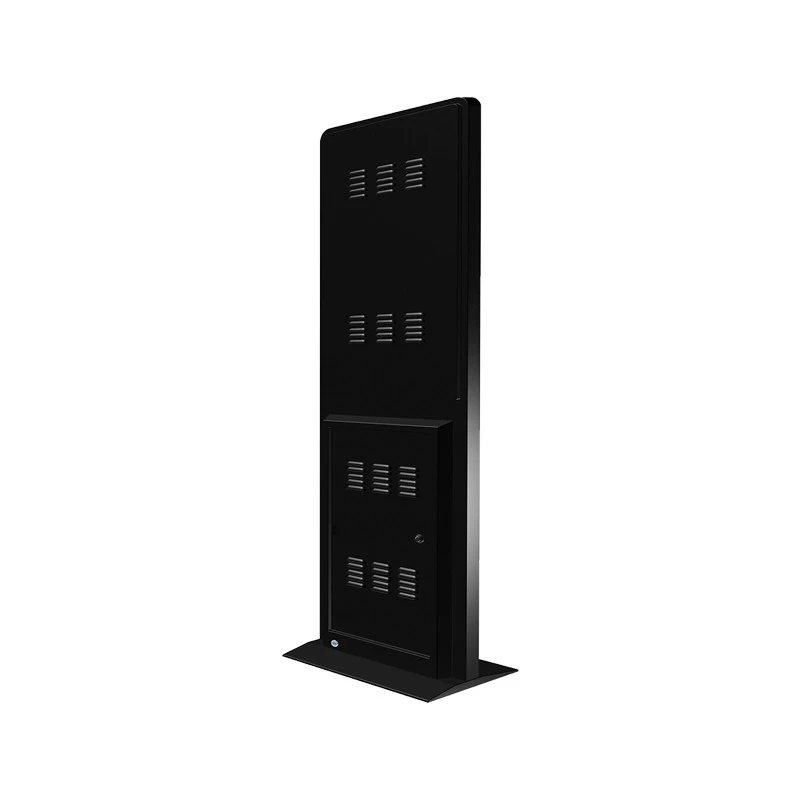
If you're in the market for other interactive touch screen products, I'd like to introduce you to some of our other offerings. We also supply Interactive Wall Screen, Commercial Touch Screen Display, Touch Screen Panel for Teaching, Touchscreen Monitor Kiosk, and Large Interactive Touch Screen. These products are designed to provide a seamless and engaging user experience, and they're perfect for a variety of applications.

Conclusion
Cleaning your All in One Touch Screen Kiosk is an important part of maintaining its performance and appearance. By following these simple tips and using the right cleaning supplies, you can keep your kiosk looking and functioning its best for years to come. If you have any questions or need further assistance, please feel free to contact us. We're always here to help.
If you're interested in purchasing an All in One Touch Screen Kiosk or any of our other interactive touch screen products, please don't hesitate to reach out. We'd be happy to discuss your needs and provide you with a quote.
References
- Manufacturer's guidelines for cleaning touch screen kiosks.
- Industry best practices for maintaining electronic devices.